ctcLink for Students

Note to new students starting each quarter: please refer to the web page titled ctcLink for Prospective and New Students.
Important Update for Students: March 13, 2026
There is now a new state-mandated requirement in place for students to use Multi-Factor Authentication (MFA) when logging into ctcLink, as well as the services that utilize ctcLink for identity verification. This means that students will now be required to sign in with a two-stage MFA process:
- ctcLink ID and password (as has been done previously)
- Verification via email, voice call, or use of an authenticator app (this is the new part)
This MFA process is similar to others that you have likely experienced in other contexts, such as with banking, government sites, healthcare sites, and so on, where an extra layer of security is provided by MFA. In this case, once your ctcLink ID and password have been accepted, you will be asked to verify your identity via a secondary method, where you will receive a code that you will then enter into the next login screen.
This document provides detailed instructions. Note: the current language of this document refers to "employees", but the contents now apply to students as well.
Please refer to the IT Help Desk for additional support.
About ctcLink
ctcLink provides you with a centralized system to conduct your college business. This system combines student information in a single data set to allow more self-service options and to improve the experience, especially if you are looking to transfer to or from other community and technical colleges within the state.
Your ctcLink account gives you access to the following applications:
- Manage Classes: register for, add, and drop classes
- Academic Records: view grades and past classes and download unofficial transcripts
- Profile: view or update personal information, including your contact information
- Financial Account: pay tuition and fees and check your account balance
- Financial Aid: manage and accept financial aid awards and applications
- Report Time as a Student Employee
- Apply for Graduation
- Your ctcLink ID and password are also the credentials used to access your Canvas learning account (but note that Canvas is a separate application).
- With your ctcLink ID, you have one login to access your information across Seattle Colleges as well as at all Washington community and technical colleges. If you transfer in from or out to another community or technical college in Washington state, you will be able to use that same ID to access your information, which will follow you.
For step-by-step guides on using and navigating ctcLink, visit the ctcLink Resources for Students web page. Some important notifications and various tips are also posted below.
A ctcLink Mobile App Is Available
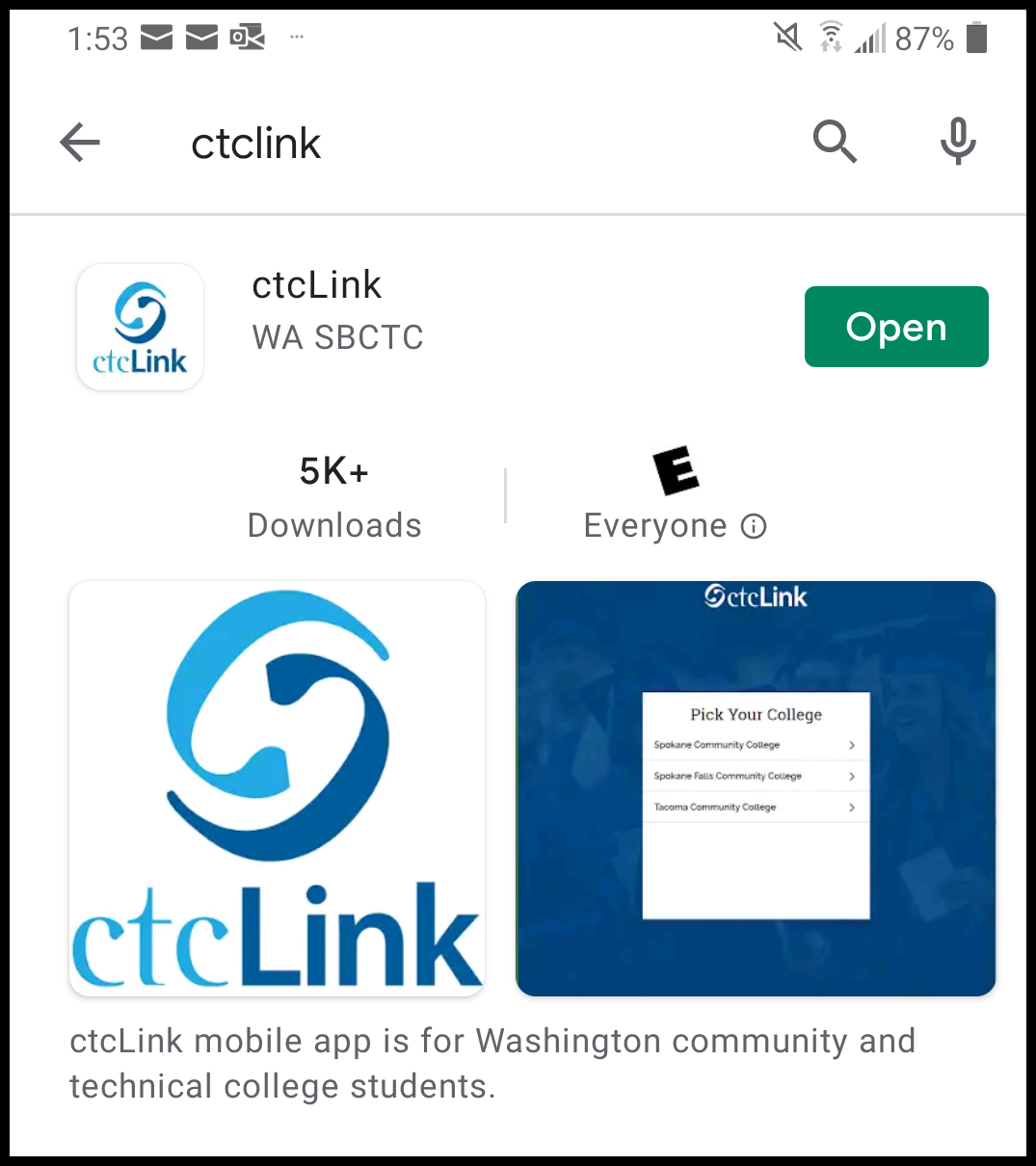
One exciting feature of ctcLink is an app you can use on your mobile devices. Search the app store (iPhone) or play store (Android) on your mobile device for “ctcLink” to download and install this free app today.
Note: You must activate your ctcLink account before using the mobile app or its web-based version. Please see the ctcLink Resources for Students web page for account activation instructions and for more information about the app. After you activate your ctcLink account, you’ll be able to access ctcLink directly through your mobile device using the app.
A Few Quick Tips
Some students are encountering issues in ctcLink. Below are some solutions you can try.
- Can’t see your tuition or student account?
- Encountering an issue when attempting to make a credit card payment?
- Q: I’m unable to log into ctcLink after updating my password and activating multi-factor authentication, do you have some suggestions?
A: Try clearing the history and cache of your primary browser or log out of your browser and close it, then reopen it and log it. Also try logging in to ctcLink with your new password in a different browser.