Canvas LMS
Overview
Canvas is our institution's Learning Management System (LMS). With Canvas, faculty:
- Organize and deliver course content
- Communicate with individual and groups of students
- Collect assignments, give feedback, and grade
- Develop grading structures and calculate grades
- Conduct online class discussions
- And more!
This page provides links to Canvas resources and a quick guide for common questions.
How to find Canvas help
To find step-by-step guides, you can enter your question or topic into the search bar of this instructor help site. All guides include how-to videos, text instructions, and screenshots.
For a scaffolded training, you can a stipended LEAD course: Intro to Canvas, Intermediate Canvas, or Advanced Canvas.
How to use Canvas
Here is a quick start guide to Canvas that covers some of the basics.
Canvas Quick Guides
To comply with accessibility laws, use the Canvas accessibility checklist. You can also enroll in Seattle Colleges' Accessibility Training Hub.
There are many features that can make Canvas more accessible for students with disabilities. Here is a sampling:
- How to extend time on quizzes
- Canvas features that support UDL
- Existing and missing accessibility features in Canvas
To post questions, search for answers, and help other instructors, check out this hub of discussions and blog posts: Accessibility in Canvas blog and forums
If you plan to use Zoom to teach synchronous (live) class sessions, hold office hours, or facilitate study groups, you’ll need to get the link of your Zoom meeting or Zoom office to your students. Here are three ways to add your Zoom link to Canvas.
For additional questions, visit this Zoom in Canvas guide with screenshots and step-by-step instructions or this Zoom in Canvas FAQ.
In Canvas, you can send messages to your enrolled students using the Inbox. You can message individuals or the entire class.
The Announcements feature allows you to communicate with all students in a course via text or short videos. This is useful for sharing short updates, correcting errors, and boosting engagement. You can enable student comments on an announcement to engage in Q&A and encourage active participation.
You don’t need to request your Canvas shells for the upcoming quarter; they are automatically created.
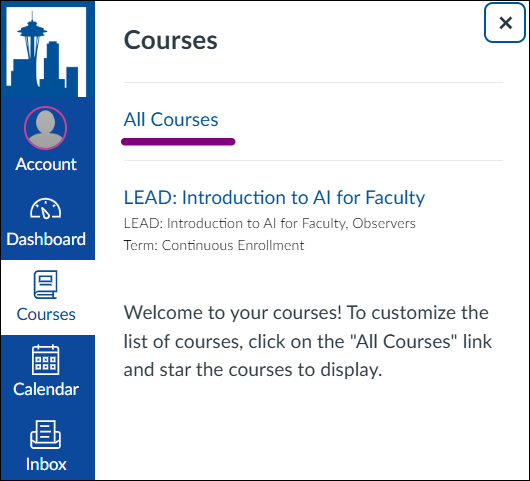
To find a specific course, click on "Courses" in the left-hand navigation and then select "All Courses" (see screenshot below).
You can customize your favorite courses by (un)clicking the gold star next to the course. The course will appear on your Dashboard if the star is filled out.
For any issues with Canvas, please submit a support request to eLearning or email elearning@seattlecolleges.edu
Follow these instructions for resetting your cTcLink password. It is the same password for Canvas and cTcLink.
For help, please contact IThelp@seattlecolleges.edu or the IT live chat.